
When a cell phone starts to freeze, the first reaction is usually to hurriedly delete photos or install an app to clean up memory without understanding what it actually does. In practice, the problem almost always involves full storage, accumulated cache, forgotten downloads, and duplicate files.
This topic deserves attention because not all cleanups are the same. In many cases, the solution is to organize photos, review large files, and carefully remove unnecessary items, without confusing useful cleanups with risky deletions. On Android and iPhone, the logic changes slightly, and this alters what's worth doing first.
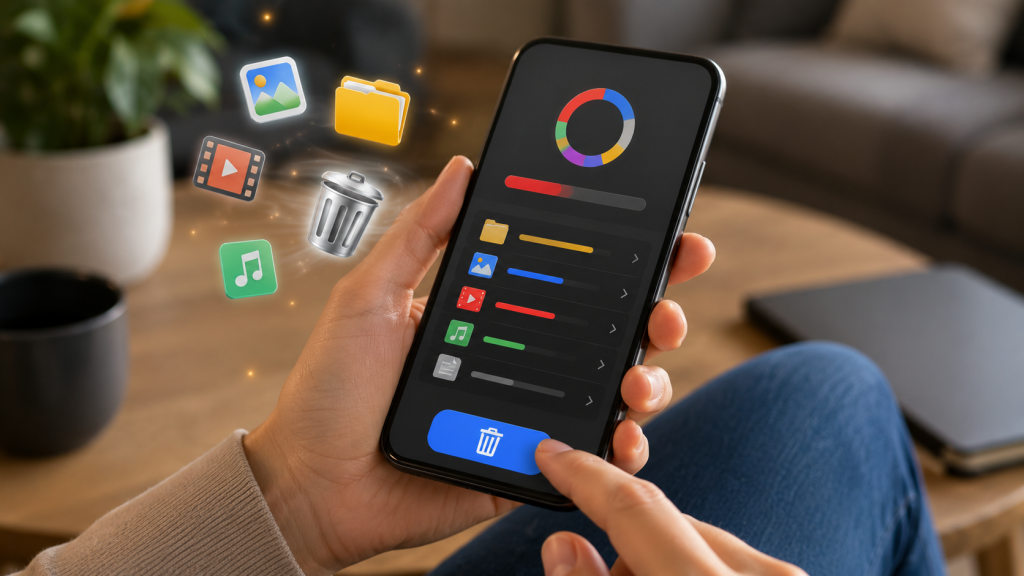
What does this topic mean in practice?
In everyday use, "full memory" is often a simple way of referring to occupied storage. This includes photos, videos, apps, messages, downloaded documents, and temporary data. Technically, memory and storage are not the same thing, but popular usage mixes the two terms in daily life.
The effect appears in a very common way: the phone becomes slower to open apps, the camera complains about lack of space, and updates fail to install. Instead of thinking about a magic cleanup, the safest approach is to find out what's taking up space and remove only what you don't need.
Source: Google Support — Android
Source: Apple Support — iPhone
application to clean memory
This type of tool exists to help locate leftover files, duplicate media, old downloads, and rarely used apps. Some also suggest clearing cache, reviewing similar photos, and organizing folders that are often forgotten. On Android, several of these features are common in file management and cleaning apps.
The key point is understanding the limitations of these solutions. No app works miracles if the problem is an excess of videos, accumulated backups, or storage that's almost at its limit. Their real usefulness lies in reducing digital clutter, not in promising a "new" phone after a single tap.
How to identify what is taking up space.
Before installing anything, it's worth opening the system's own storage area. On Android, the storage menu offers options to free up space, and some devices have automatic features to clear content already protected by backup. On iPhone, the storage screen shows what takes up the most space and helps you decide what should be removed or offloaded.
In practice, the biggest culprits are usually long videos, message groups with media, forgotten downloads, and rarely used apps. On a family phone, for example, it's common to find dozens of WhatsApp videos and old screenshots taking up more space than the apps themselves. The clearer the diagnosis, the less chance there is of accidentally deleting something important.
The 7 apps and where each one makes the most sense.
Instead of treating them all the same, it's worth looking at the problem each one is trying to solve. Some focus on system files, others on photos and videos, and others on installation leftovers or general organization. The most sensible choice depends on the type of phone, usage habits, and the level of care you want to take with your data.
The list below is not a ranking. It serves to show, in a practical way, where each tool tends to be most useful and which part of the digital clutter it helps to better visualize. This makes it easier to distinguish between useful cleanup and generic promises.
Files by Google
It's a strong option for Android because it offers cleaning suggestions focused on large files, duplicates, old downloads, and rarely used apps. It also helps you quickly find what's taking up space without relying on trial and error.
Google Photos
This makes more sense when the problem lies with images and videos. The app and Google support make it clear that, after backing up, it's possible to free up space by removing local copies that are already saved in the cloud. This is usually useful for devices used by people who take a lot of photos every day.
Samsung My Files
It's especially useful on Galaxy phones because it organizes files, downloads, documents, media, and even content linked to cloud storage or SD cards. For Samsung users, it's often a direct way to see what's sitting idle on the device without relying solely on automatic cleanup.
CCleaner
It's a well-known Android tool for removing junk files, reviewing storage usage, and organizing leftover files after heavy use. The official app highlights junk cleaning, space recovery, and system monitoring, making it a more comprehensive option for basic maintenance.
AVG Cleaner
It focuses on removing unnecessary files, reviewing similar media, and freeing up space occupied by duplicate content. The proposal also includes photo organization and storage optimization, which can be useful when the gallery grows uncontrollably.
Avast Cleanup
It often appears as an option for those who want to combine file cleaning, media review, and identification of unnecessarily large items. The official page describes junk removal, organization, and even highlighting blurry photos, which can be helpful on phones with a lot of accumulated images.
CleanMy®Phone
This is especially relevant for iPhones, particularly when the gallery is cluttered with duplicates, large videos, and repeated captures. The App Store page describes storage cleanup focused on photos, videos, compression, and library organization, which is a good fit for those who frequently use their phone's camera.
How to use this type of feature without deleting what matters.
The first safe step is to review what the app is suggesting before confirming any deletion. If the proposal is to delete photos, videos, or documents, it's worth opening a preview, checking for duplicates, and verifying if the file has already been saved elsewhere. On a shared phone, this precaution prevents deleting memories, receipts, or study materials.
The second step is to create backups before taking larger actions. Travel photos, work videos, receipts, and school files deserve a copy in the cloud, on your computer, or on an external drive before any more aggressive cleanup. If the content has personal or financial value, it's best to treat deletion as a last resort, not the first.
Common mistakes that hinder decision-making.
A common mistake is thinking that any cleaning will permanently improve the device. Sometimes the phone gets full again in a few days because the real problem remains the same: unsorted received videos, downloaded files, and automatic backups that keep growing. Without adjusting the habit, cleaning becomes a repetitive routine.
Another mistake is trusting tools that promise to solve everything with a single tap, without explaining what will be removed. If the app doesn't clearly state what it will delete, how much space it can free up, and how to restore something by mistake, the best choice is not to proceed. Haste often costs more than the space gained.
When native features are better than an app.
On many cell phones, the system itself already offers solutions for most cases. On Android, the storage path with "Free up space" and similar features usually handles obvious files, while the iPhone has options like photo optimization and offloading rarely used apps. This already covers a good portion of everyday situations.
When the device is new or the problem is simple, using what comes with the system reduces risk and avoids installing yet another app with unnecessary permissions. If the need is only to delete old media, reorganize downloads, or remove apps that rarely open, the native feature is usually sufficient. In general, the fewer steps and the fewer promises, the better.
Source: Files by Google — official website
How to adapt the choice to your context.
Not every phone needs the same type of solution. On Samsung devices, My Files makes more sense because it integrates better with the system's own organization. On iPhones, the benefit usually comes from the gallery and apps that help review photos and videos, in addition to the native storage controls.
The usage profile also matters. Those who work with content tend to accumulate large amounts of media and need frequent review, while those who use their cell phones more for messaging and banking often struggle with downloads, attachments, and temporary files. At home, a cell phone shared among family members may require more careful backup and organization than a device for individual use.
A rule of thumb for making safe decisions.
A simple way to decide is to ask yourself three things: what's taking up space, what can be deleted safely, and what needs to be saved elsewhere. If the answer isn't clear, don't delete impulsively. The safest choice is almost always the one that provides visibility before you start messing with the files.
If the app shows the reason for the cleanup, allows you to review before deleting, and doesn't require excessive permissions, it tends to be more reliable for everyday use. If the promise is vague, too aggressive, or based on instant performance gains, it's worth backing down and using the system's native feature. For cases of storage failure, severe slowness, or files that won't open, technical support may be necessary.
Practical checklist
- Open your phone's storage screen and see which categories are consuming the most space.
- Back up your photos and videos before deleting old files.
- Review any forgotten downloads, especially PDFs, videos, and message attachments.
- Check for duplicates in the gallery before deleting similar files.
- Uninstall apps that haven't been used for months.
- Clear up old screenshots that are no longer useful.
- Check if the device already has built-in features for organizing and freeing up space.
- Avoid granting broad permissions without understanding why the app needs them.
- Please confirm if there is an option to restore files after deletion.
- Review work files, invoices, and documents before using any automatic cleanup.
- On Android, prefer tools that explain what will be removed.
- On iPhone, prioritize features related to photos, videos, and apps that you don't use often.
- If the storage tank remains full for no apparent reason, seek technical assistance.
Conclusion
A full phone almost never requires a drastic solution. In most cases, what helps is understanding where the space went and choosing the right tool to organize photos, videos, downloads, and rarely used apps. When the process is carefully considered, cleaning stops being a guessing game and becomes simple maintenance.
It's also worth remembering that each system offers different approaches, and this significantly changes the outcome. On Android, some management apps make sense; on iPhone, native features and gallery-focused tools tend to be more relevant. Have you ever been in a situation where your phone filled up unexpectedly? What was the hardest part about deciding what to delete?
Are there any specific questions about this topic that still cause you insecurity in your daily life? If the problem involves storage errors, file loss, or strange device behavior, the safest advice is to seek technical help before insisting on repeated deletions.
Common questions
Do these apps delete important files?
Yes, they can delete things if you confirm the deletion without reviewing. Therefore, it's worth previewing what will be removed and backing up personal, school, or work-related files. A good cleanup is one that shows exactly what will be removed.
Does clearing the cache fix a slow phone?
Sometimes it helps, but it doesn't solve everything. If the slowness is due to low free space, too many videos, or an excess of apps, the fix needs to be more comprehensive. Cache is only one part of the potential problem.
Do Android and iPhone need the same solution?
No. On Android, apps like Files by Google and My Files tend to have a more practical role, while on iPhone, the system's own storage resources and apps focused on photos and videos tend to make more sense. The approach changes depending on the device.
Is it okay to install multiple cleaning apps at the same time?
Generally, no. This can create confusion, repeat functions, and increase the number of permissions granted to the device. A single, well-chosen feature is usually easier to control.
If I delete photos from my gallery, do I lose them forever?
It depends on where the image is saved. If there's a cloud backup or a copy on your computer, the loss is less; otherwise, the deletion could be permanent. Before deleting, confirm the file's source and destination.
When should you seek technical assistance?
If your storage remains full for no apparent reason, if your device crashes when installing apps, or if important files won't open, it's worth seeking assistance. Memory problems that appear to be system errors may conceal a physical defect or data corruption.
What to do when your phone gets full again right after cleaning?
Reassess your habit of receiving and storing media without filtering. In many cases, the problem lies in messaging groups, automatic downloads, and accumulated photos without sorting. Adjusting your routine usually works better than repeating the same cleanup.
Useful references
Google Support — practical guide to freeing up space on Android: support.google.com
Apple Support — Organizing photos and videos on iPhone: support.apple.com
Samsung Support — Using My Files on Galaxy devices: samsung.com